


用户手册
AI Prompt
The AI Prompt folder provides the ability to get ideas for any occasion directly inside the browser. Results can be dragged and dropped directly to a deck to play instantly.
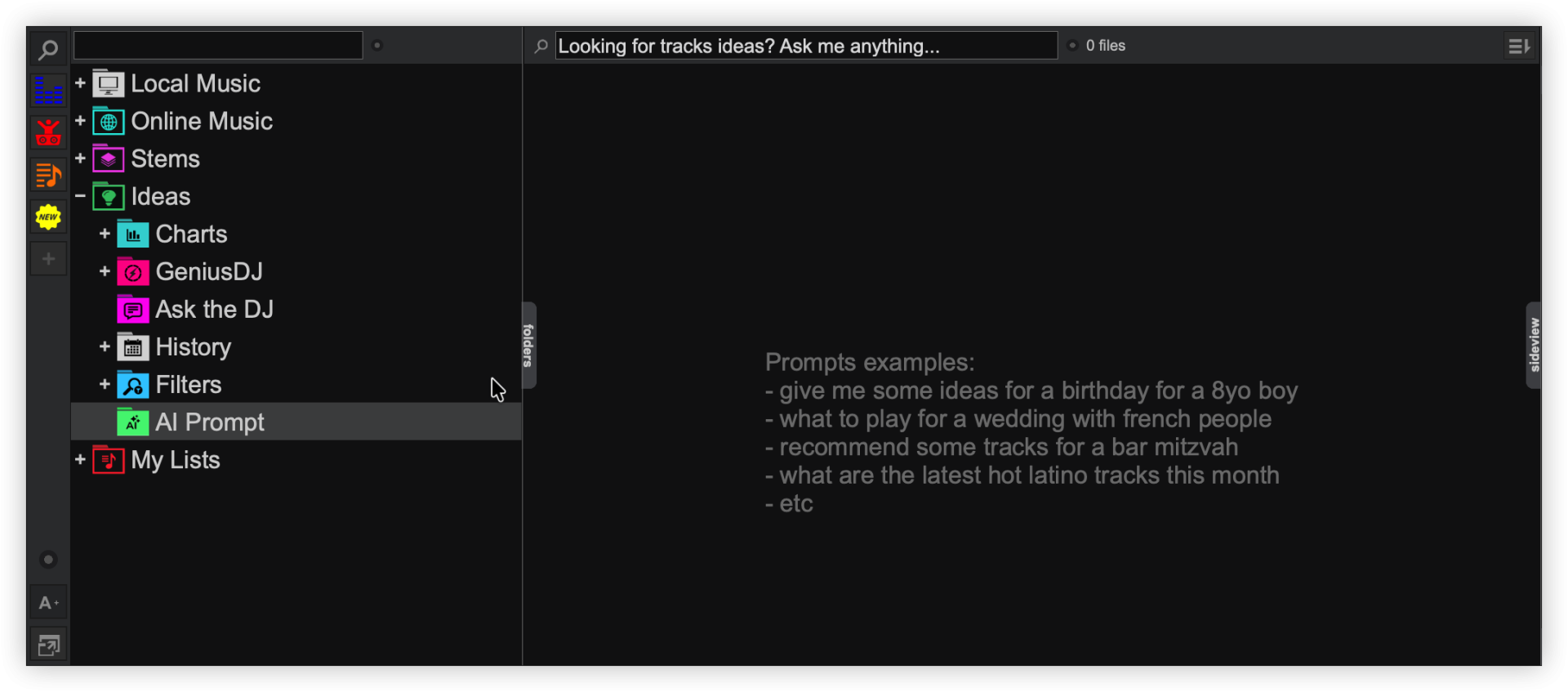
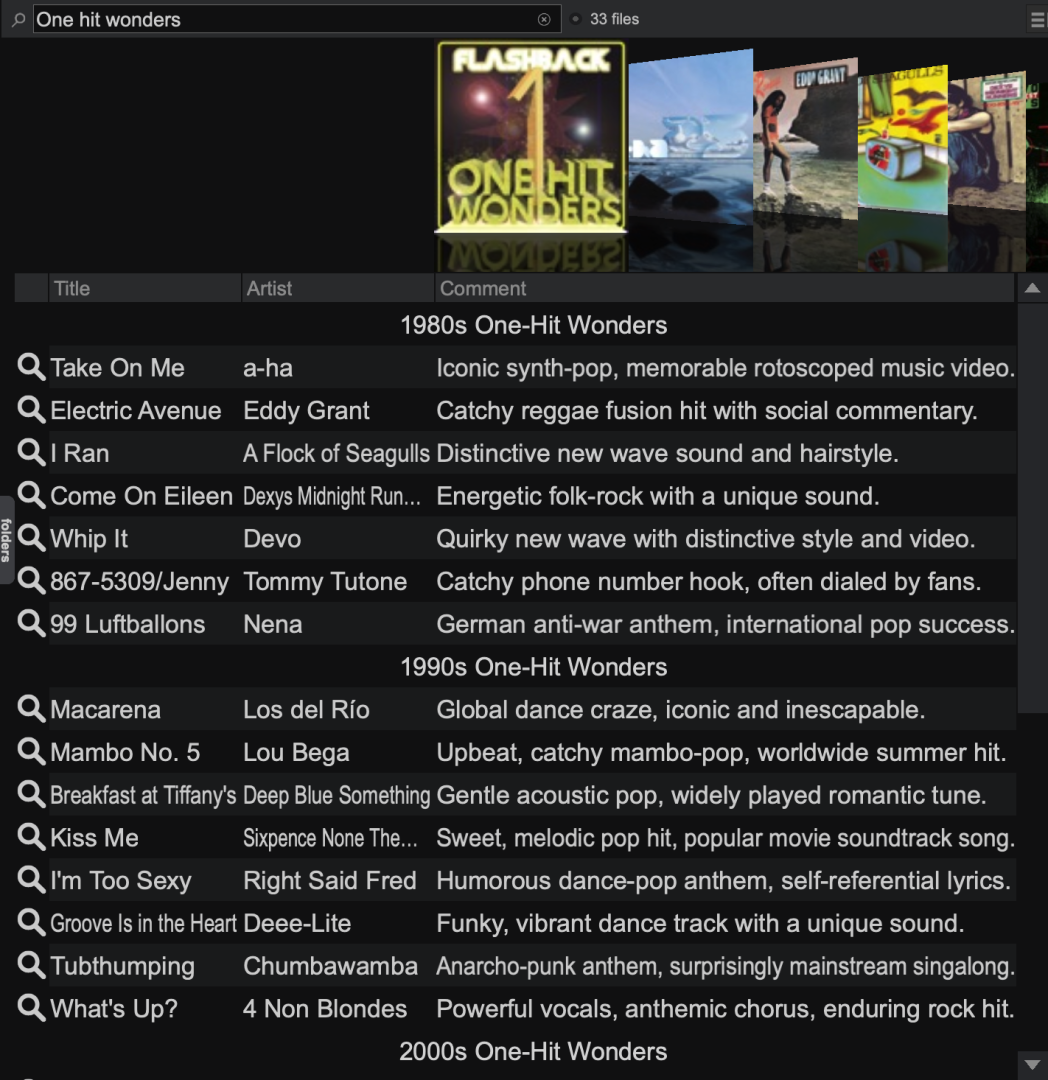
Type something into the search bar and the results will appear based on the search query. In most cases, the results will be categorized into year or genre to make the results easier to navigate.
Each result will show the title, artist, and comment by default.
If a follow-up prompt is typed into the search bar within 1 minute, it will keep the context of the original search and refine the results.

No exact results found. Right-click and select “look up” to search the Online Music catalogs for results.

A file or multiple files in the Online Music catalogs match the selection. Right-click and select ‘look up’ to show all Online Music results.

A file or multiple files in your database match the selection. Right-click and select ‘look up’ to show all local results.
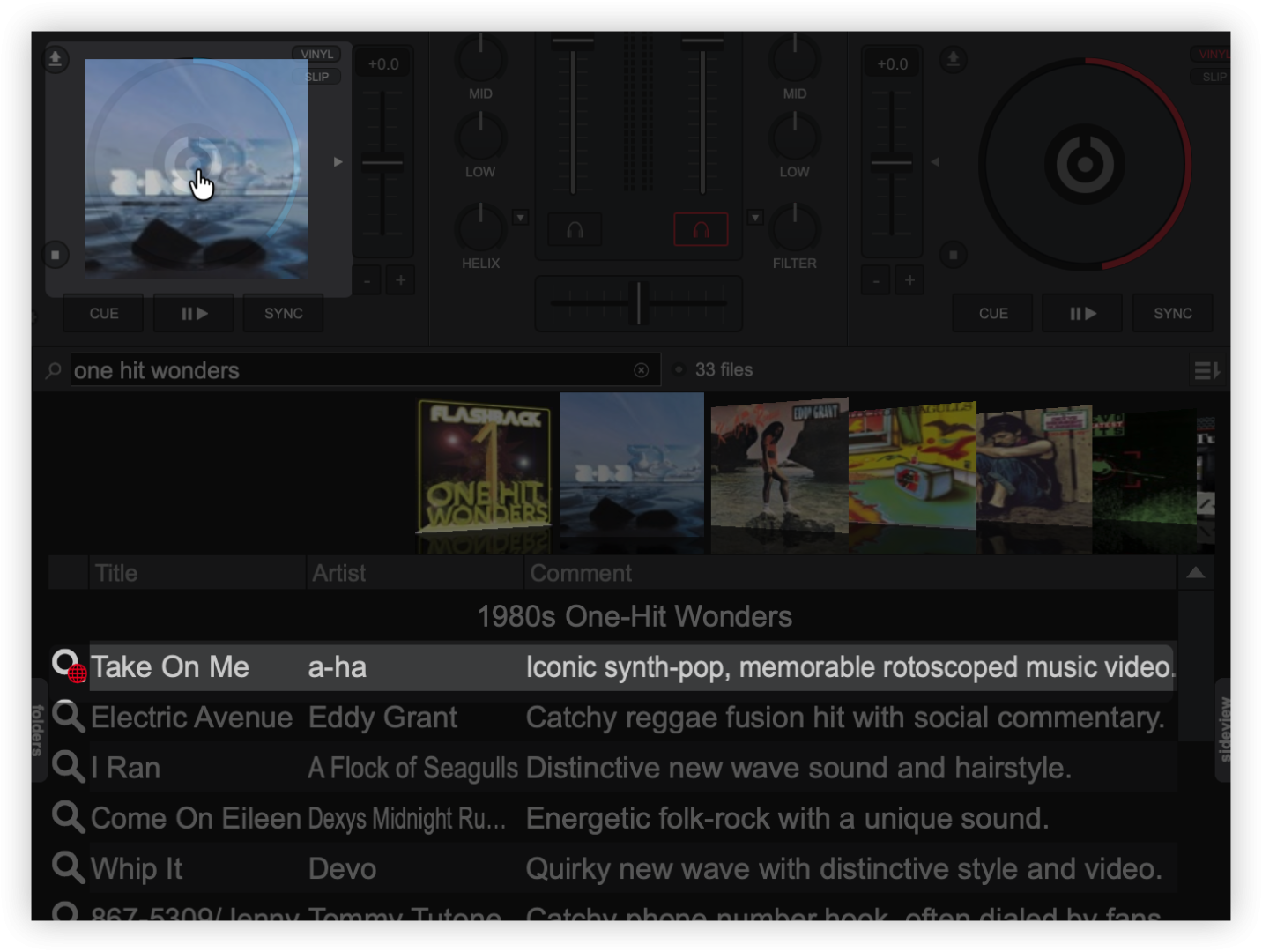
Drag and drop the track to a deck to load it and begin playing.
The AIPrompt feature requires a PRO license, and the lyrics will get results only for popular songs unless a PRO license is being used.