用户手册
custom buttons (pro & performance layouts)
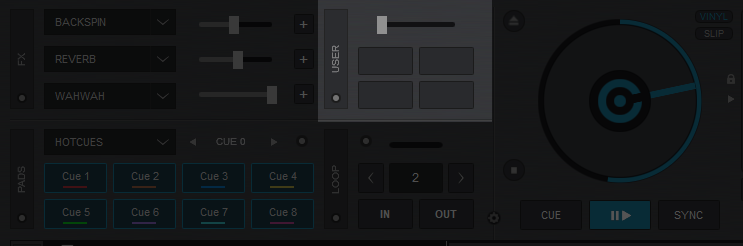
In order to cover all possible needs, features and actions, VirtualDJ offers Custom Buttons in the Pro and Performance Layouts as well as on a Pads page. This adds a few extra empty buttons and a dial to customize (via VirtualDJ script actions*) any additional functions that may be individually needed but are not present in the Interface. On first launch, the buttons and dials will be un-assigned (blank).
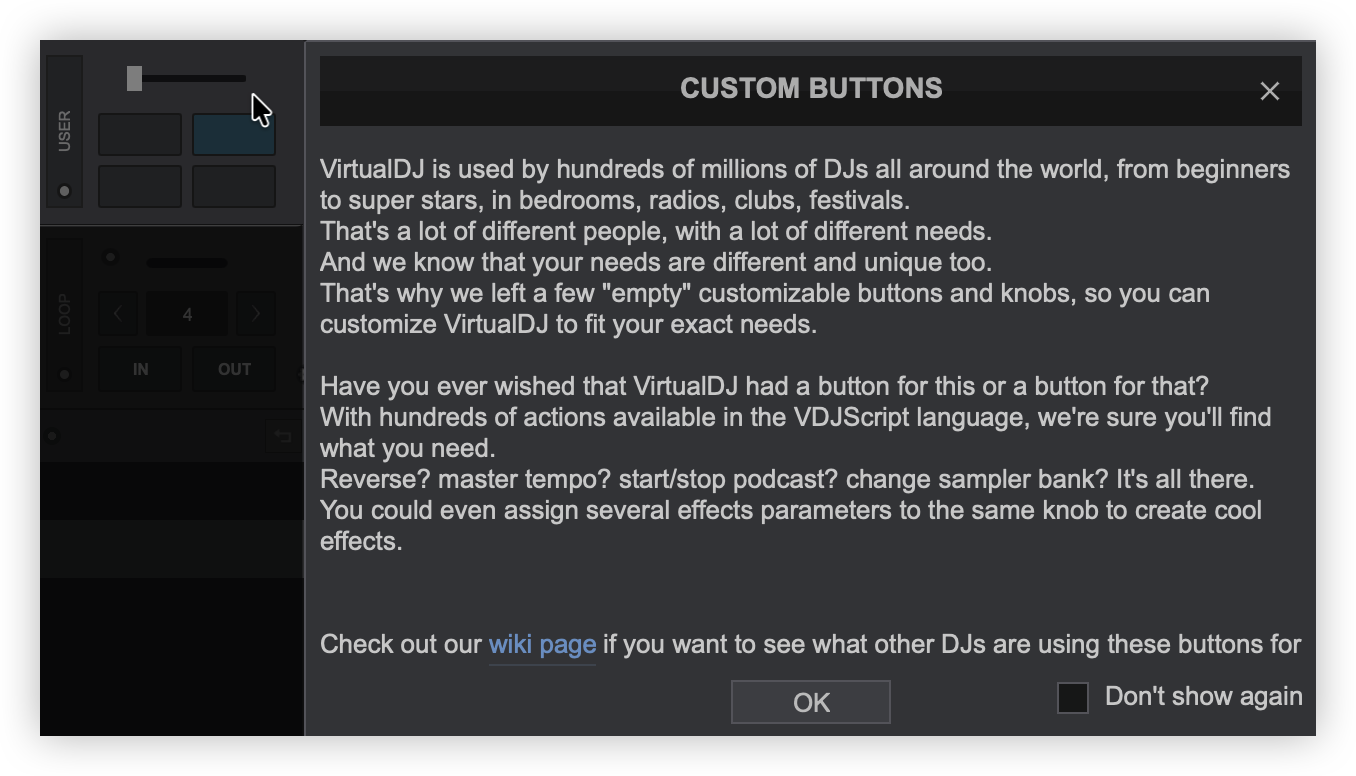
Click on any of the available Custom buttons or dial to assign an action to it. On first use an explanatory pop-up message will appear explaining the reasoning for this feature. The pop-up can be turned off for future use by checking the “Don’t show again” option box or setting customButtonWizard to “No” in Options (See Settings for more information). Click OK to Continue.
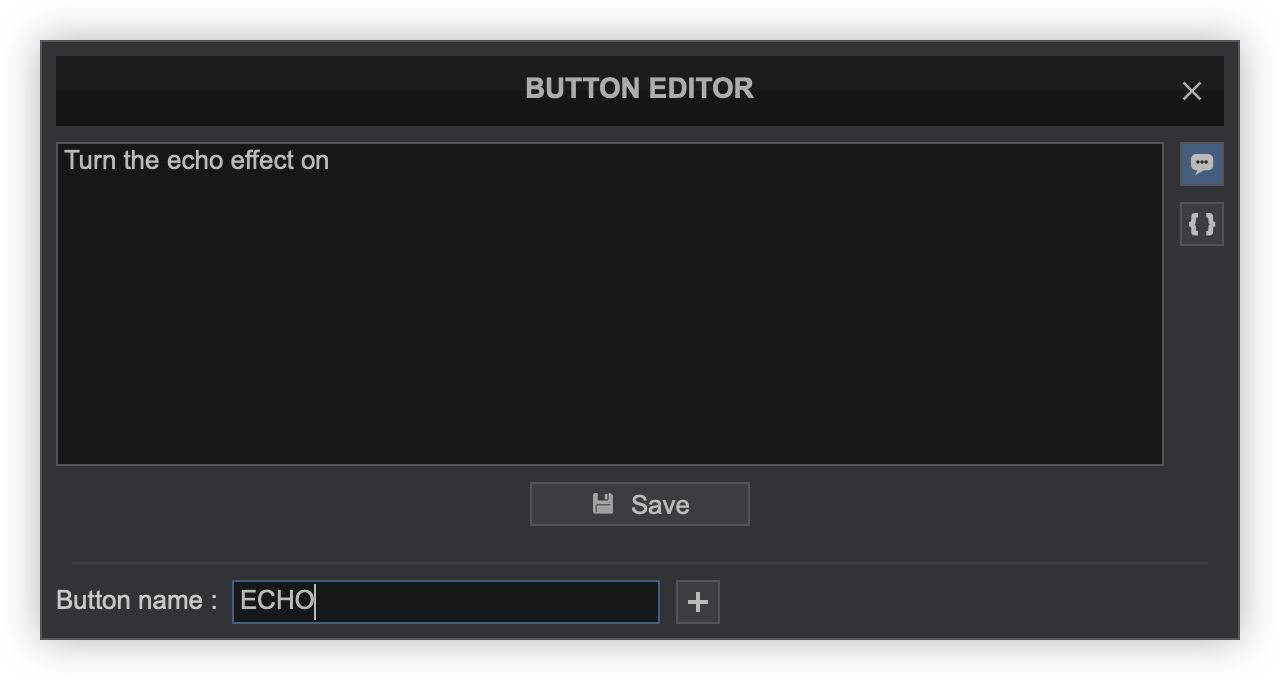
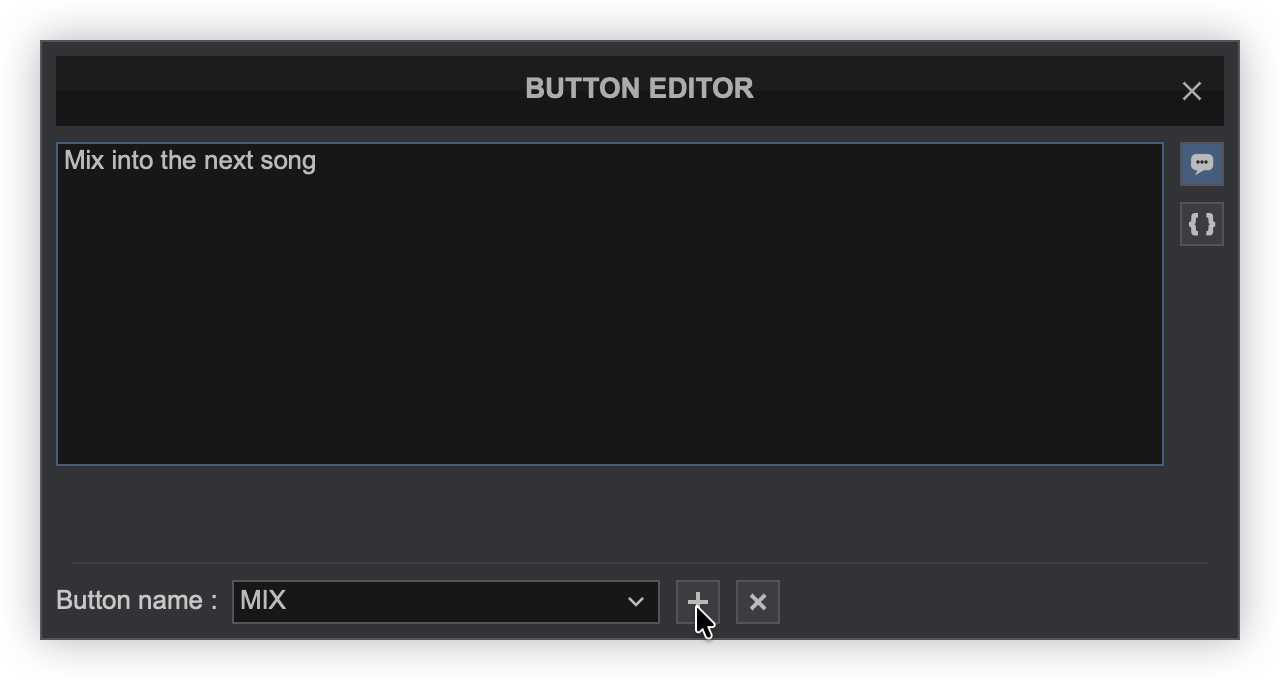
The Custom Button Editor will open.
VirtualDJ uses natural language (Pro license required) to create scripting actions. Start typing a description of the action to be performed and add a short description in the Button name box to label the Button (If no name is typed, the action will be used for the button’s label.) Click Save. VirtualDJ will generate the VDJScript automatically.
After closing the Button Editor, the Custom Buttons on the interface will now control the assigned actions. Similar operation is applied for the Custom Dial.
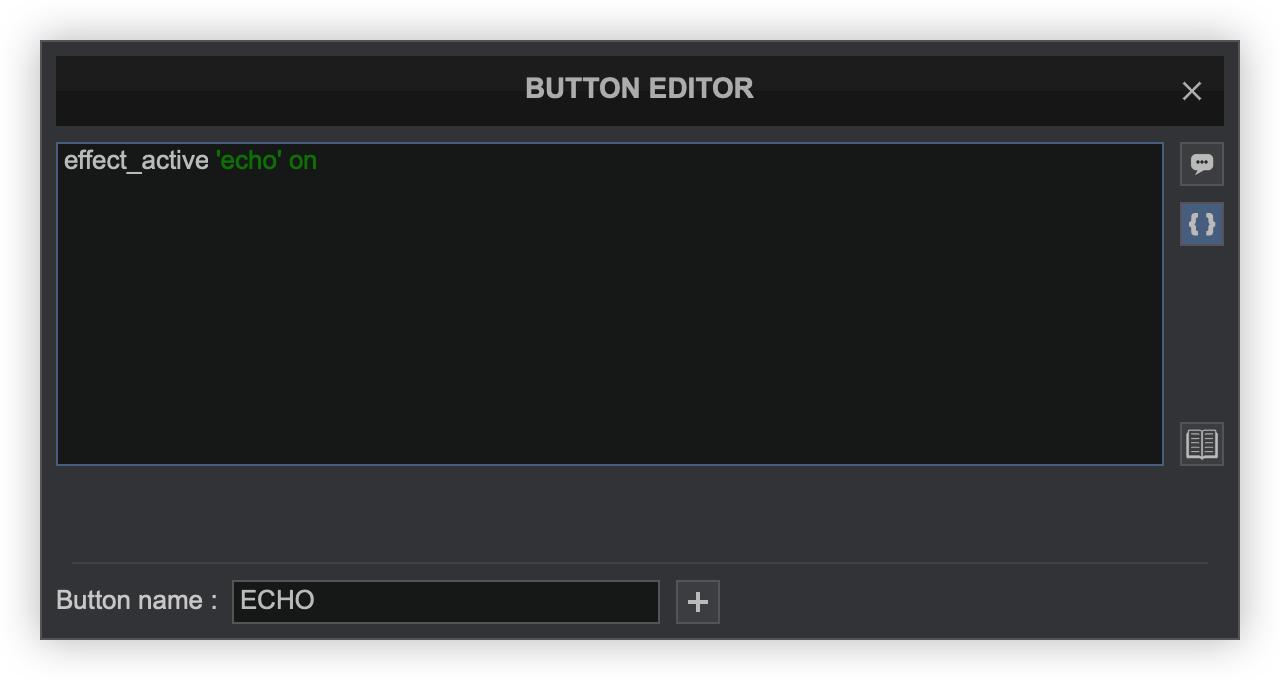
VDJScript can also be used to create scripting actions by clicking on the script button to the right of the text box. Start typing VDJScript of the action to be performed and exit out of the editor once complete. The VDJScript will be automatically saved.
Additional actions can also be assigned to the same button. Once the first action is assigned, right-click on the Custom Button to open the Custom Button Editor and click on the button at the bottom (Button name). An additional desired action can then be added and labeled.
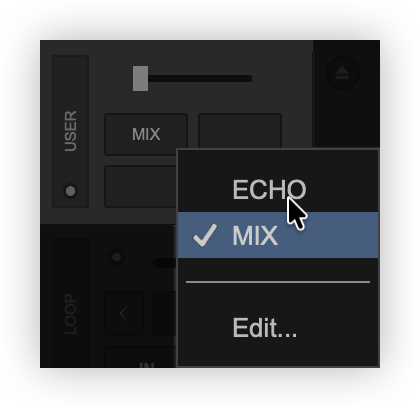
Once the Custom Button Editor is closed, right-click on the custom button and choose which of the assigned actions are needed on that button or click Edit to adjust or remove the Custom Buttons already created.
More details about VirtualDJ script actions can be found here: https://virtualdj.com/wiki/VDJScript
panel selection and toggle
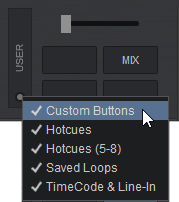
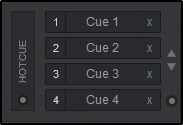
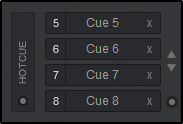
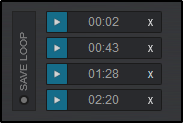
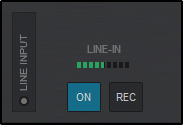
The Custom Button panel also offers additional views that can be selected. Clicking on the View Selection button inside the User Toggle will provide 5 different available views: Custom Buttons, Hotcues, Hotcues (5-8), Saved Loops, and Timecode & Line-In. Any selected view will be marked with a check mark and will display in the toggle rotation when pressed.
This provides the ability to customize the layout to display what is most important to the DJ or simply remove the Custom Button panel if it isn't going to be used.